QueVault

QueVault guide

Using Template Builder

Design a reusable record once, then use it whenever the same kind of information needs a home.

Screenshots below show QueVault 0.9.5 on Mac, using fictional demo records and public Community definitions. Select any screenshot to see it full size.

Templates that travel with you

Start with a useful design. Make it yours.

Build your own record types or discover reviewed designs in the Community Template Library.

Ready for everyday life

Start with insurance policies, warranties and subscriptions. Country labels help you choose local terminology and currencies. The library defaults to your country plus International, with other countries and All countries always available.

Your library, across vaults

Keep reusable designs in My Templates, then install a separate copy in each vault. The vault keeps the templates its records use. Make My Own Copy creates an independent design you can adapt and label for another country.

Share a form, keep your values

Template files (.qvt) share sections, field definitions and layout, without saved records or attachments. Preview imports before adding them. Review labels, hints and choices for private details before submitting a design for community moderation.

Need your saved information too? Use a vault backup or record export. A template download contains the design of a form, not the contents of your vault. Custom template use is subject to your edition’s allowances.
Use the online Template Library

  1. Open Tools → Template Builder → Template Library → Community, then choose Browse Templates. Browsing and downloading require an internet connection, not a website account.
  2. Search and choose a country. The app starts with your device region plus International; the website uses a supported browser language-region. You can select another country, International alone or All countries. Without a supported region the initial choice is International.
  3. Preview the sections, field definitions, country and version before importing into My Templates or a vault. Use in a Vault installs an independent copy. Make My Own Copy lets you choose another name and country, then edit the installed copy in Template Builder.
  4. Downloaded designs work offline. Updates are reviewed before installation; they do not silently replace installed vault copies. Use the current app for country-labelled templates; version 1 files remain readable.
  5. To contribute, export a .qvt definition, sign in on the website, upload it, review and confirm submission. Check all labels, hints and choices for private information. An administrator approves publication; only approved definitions are listed publicly.

Community browsing sends your search, country filter and page request to the configured website. It does not upload your vault or saved records. Template files contain definitions, not records or attachments.

Open the Community Template Library

Inside the app

From the Community Library to your vault

These are real screens from QueVault, showing the approved public catalogue and the choices made before importing a definition.

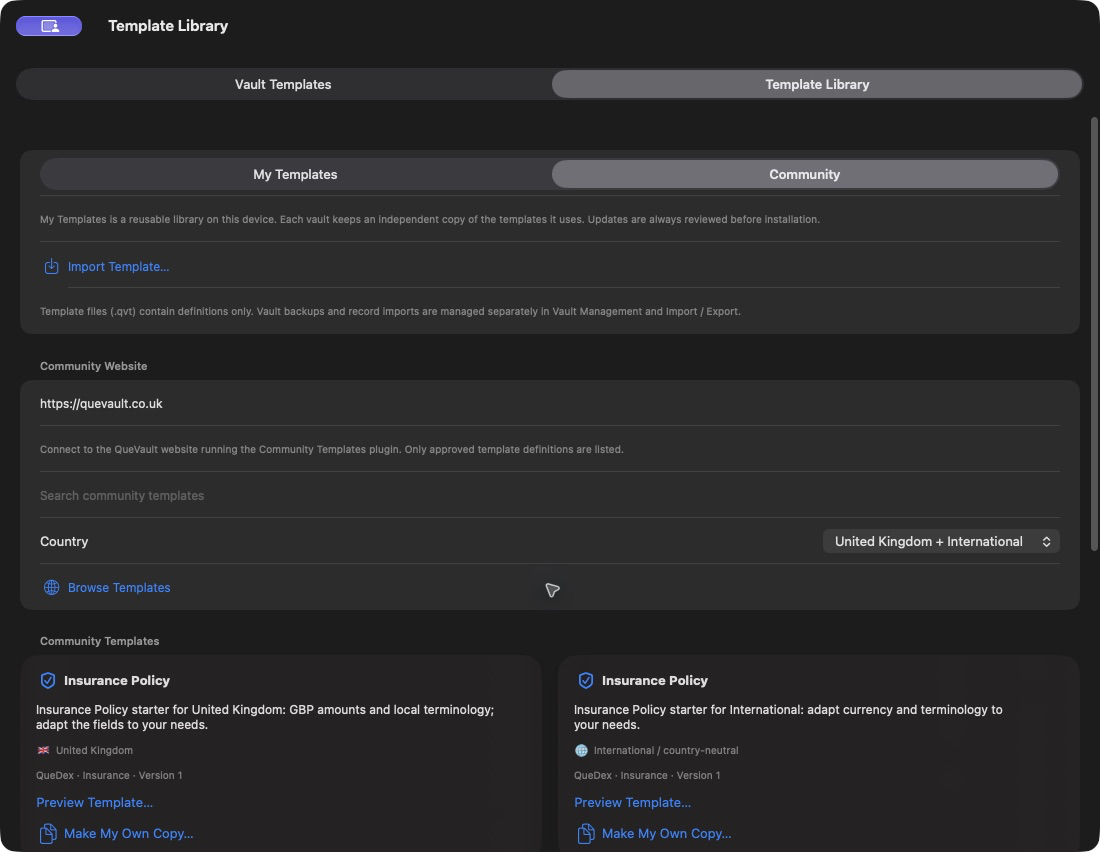
Community tab with website, search, country filter and Browse Templates
1. Open Community and browse. The Mac example starts with United Kingdom plus International. View full size
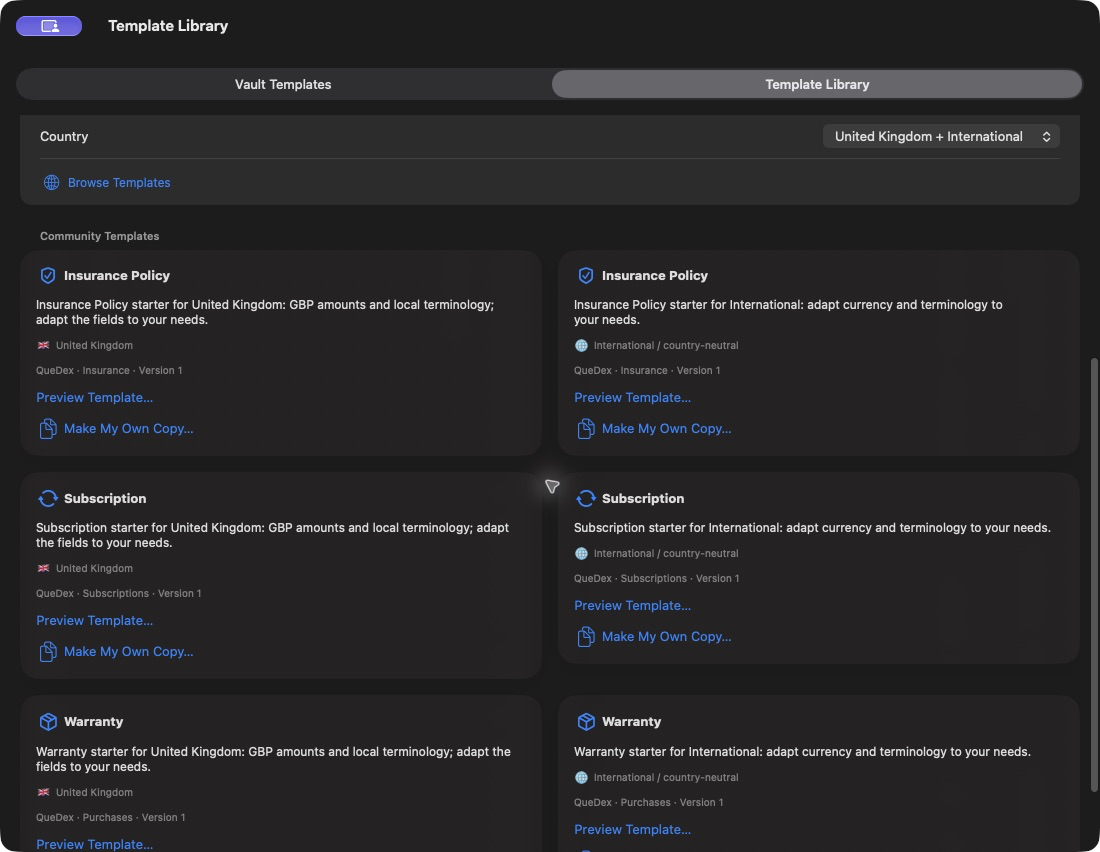
Approved Insurance Policy, Subscription and Warranty templates in UK and International variants
2. Compare country-labelled definitions. This catalogue snapshot contains approved public templates; availability can change. View full size
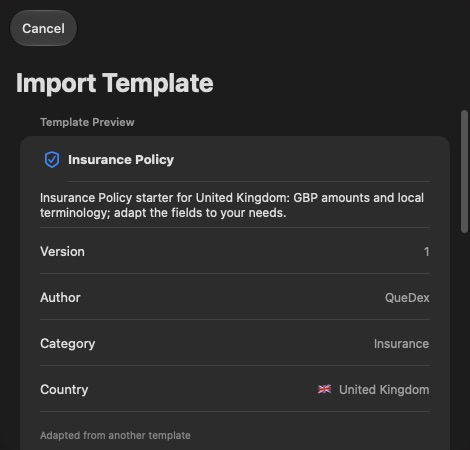
Insurance Policy template preview showing version, author and country
3. Review the definition and its origin. View full size
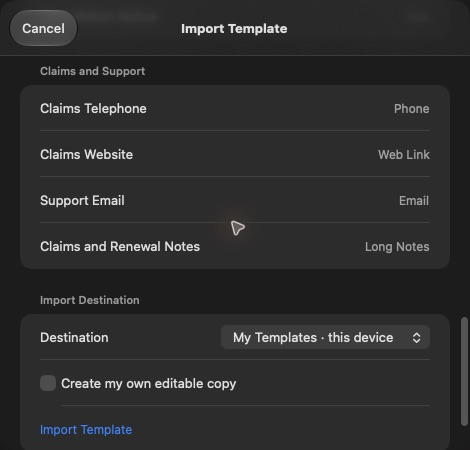
Import Destination controls with My Templates and a separate-copy option
4. Choose a destination before importing. View full size
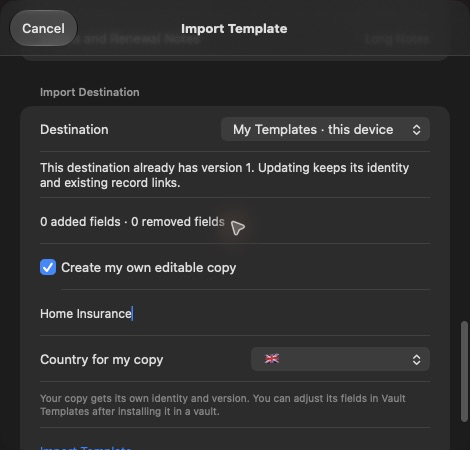
Editable-copy controls with a Home Insurance name and country choice
5. Give an independent copy its own name and country. View full size
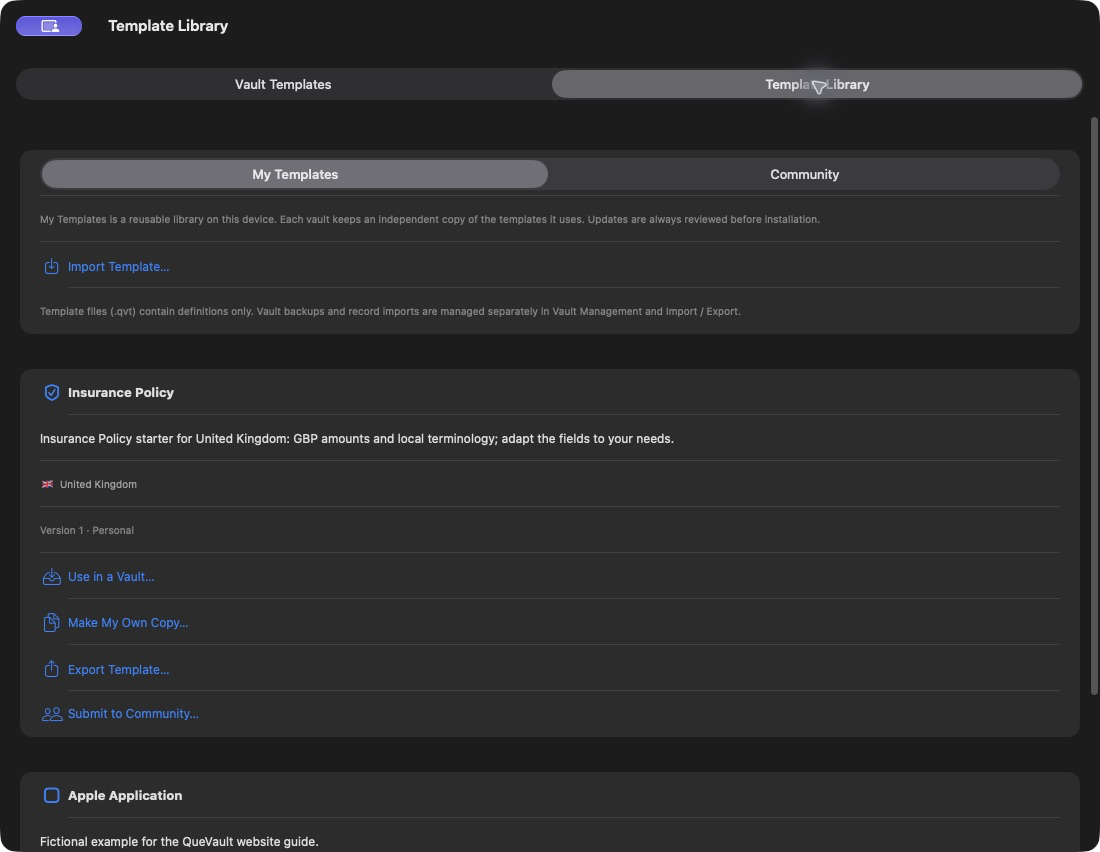
My Templates library with Use in a Vault, Make My Own Copy, Export and Submit actions
6. Keep reusable definitions in My Templates. Use in a Vault installs a copy; each vault retains its own definition. View full size

The simple idea

Build the form first. Fill it in later.

A template is not a record. It is the reusable layout QueVault follows when you create records of that type.

For example, an Insurance Policy template might contain Policy Details, Contact Details and Renewal sections. Each actual policy you add later gets its own values.

1TemplateDefine the layout
→
2New recordEnter real values
→
3Your vaultSearch and reuse
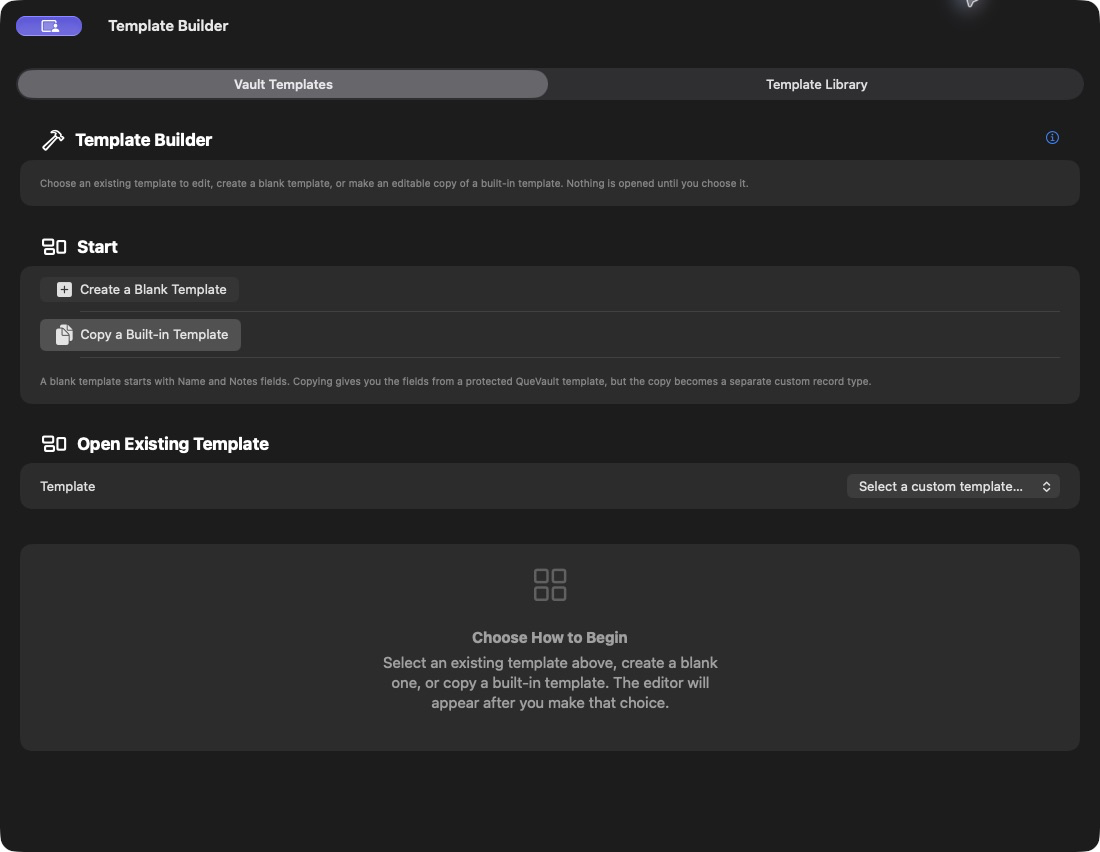
QueVault Template Builder showing its empty starting state and the options to create, copy or select a template
Template Builder waits for you to select, copy or create a template before showing the editor. View full size

Getting started

Six steps from idea to usable record

01

Open Template Builder

Unlock your vault, then choose Tools → Template Builder. Nothing is selected when the window first opens; this is intentional.

02

Choose how to begin

Select an existing custom template to edit it, choose Create a Blank Template, or copy a protected built-in type when it is already close to what you need.

Copying never changes QueVault’s built-in template.

03

Name and save its identity

Enter a singular name, plural name, icon and colour. For example: Insurance Policy and Insurance Policies. Choose Save Template so the new name is used throughout QueVault.

04

Create sections

Sections are the visible groups in the record editor, such as Policy Details, Insurer, Renewal and Documents. Choose Add Section, give it a clear name and select an icon.

05

Add and describe fields

Choose Add Field. The field name is the label people see; the format controls what kind of value they enter. A placeholder is optional guidance shown before a value is entered.

06

Enable and use it

Turn on Enabled. The template then appears in the new-record picker and, depending on Library settings, in its own sidebar group or beneath Record Types.

Worked examples

Build these two templates with us

Start with one useful field, then see how the same ideas grow into a reusable list.

Beginner · about 2 minutes

Apple application with one password

Use the application picker for an installed app’s name and icon, then store a related private value, such as a document password.

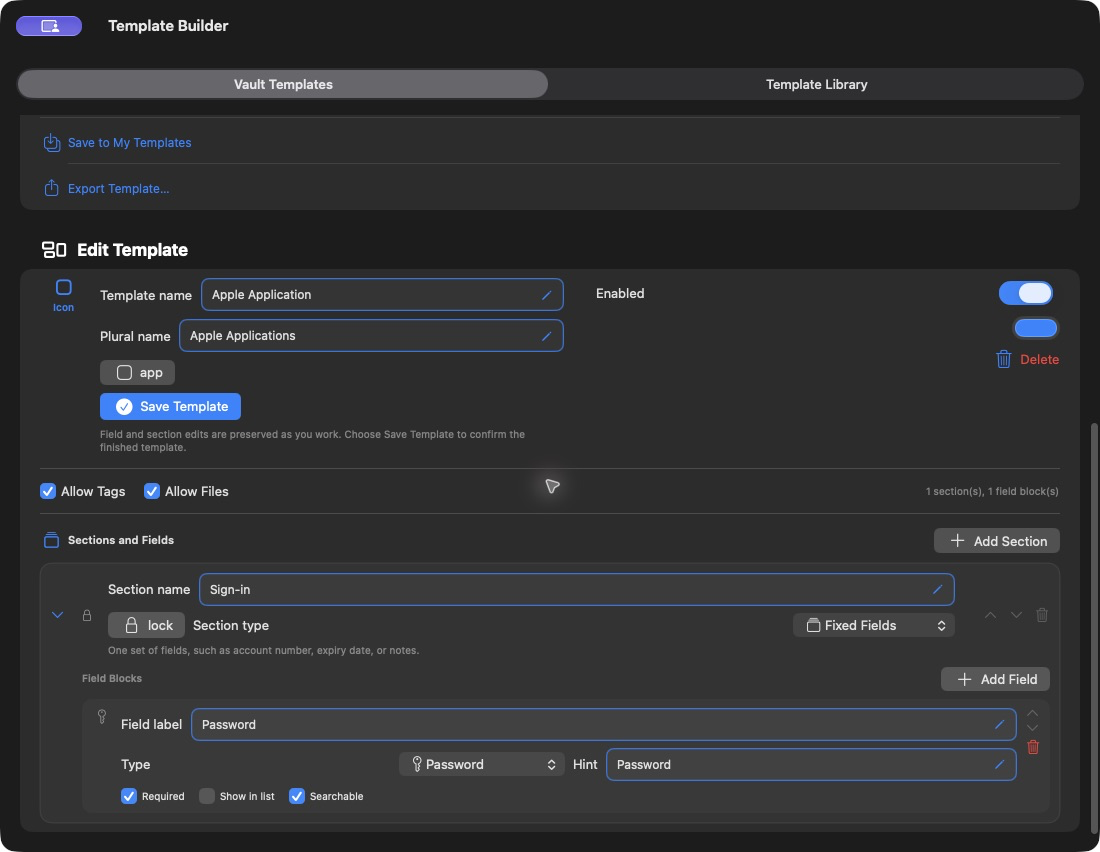
Apple Application template with one protected Password field
A complete beginner template: application identity plus one protected field. View full size
  1. Create a blank templateName it Apple Application, use Apple Applications for the plural name, choose an app-style icon and save the template identity.
  2. Add one fixed sectionName the section Sign-in and leave its type set to Fixed Fields.
  3. Add one fieldSet Field label to Password, Type to Password, and optionally enable Required and Searchable.
  4. Enable and use itCreate an Apple Application record, choose the installed app, and enter the password. The picker supplies the application name and icon, so do not add another Application Name field.
Section Sign-inType Fixed FieldsField PasswordType Password
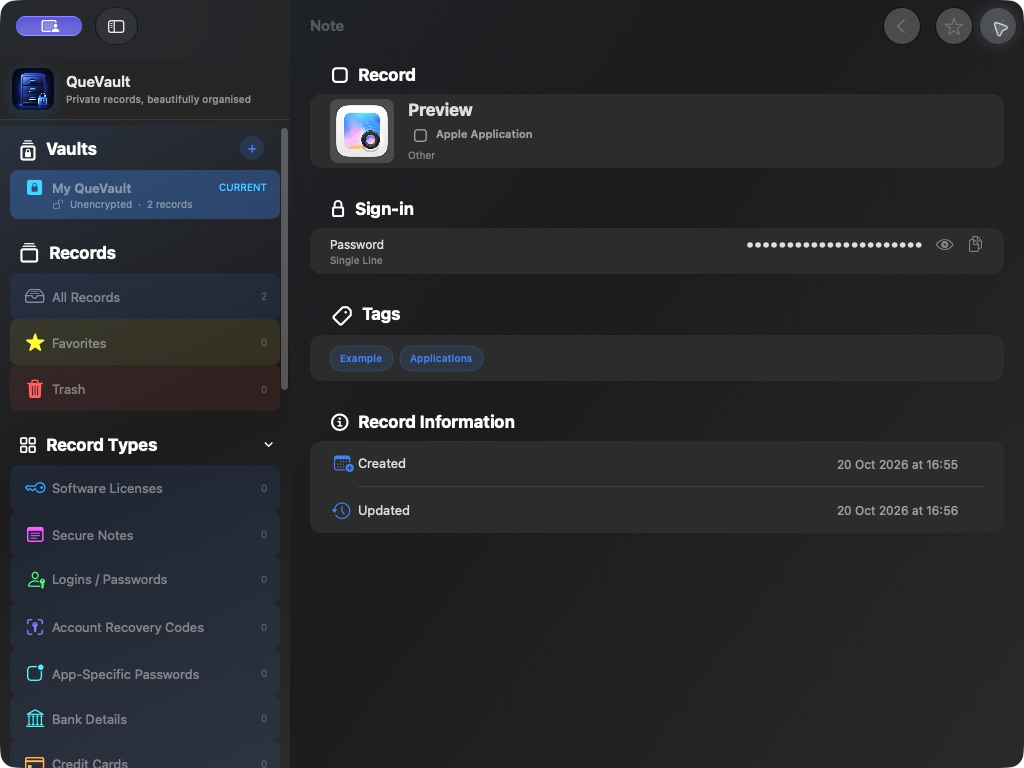
Preview application record with a concealed Password field
The finished Apple Application record uses the real Preview icon and a fictional document password. Preview itself does not require an app sign-in. View full size
Advanced · repeating rows

Shopping list with reusable item rows

Use a normal section for the list’s general details and a repeating section for items that can be added as many times as required.

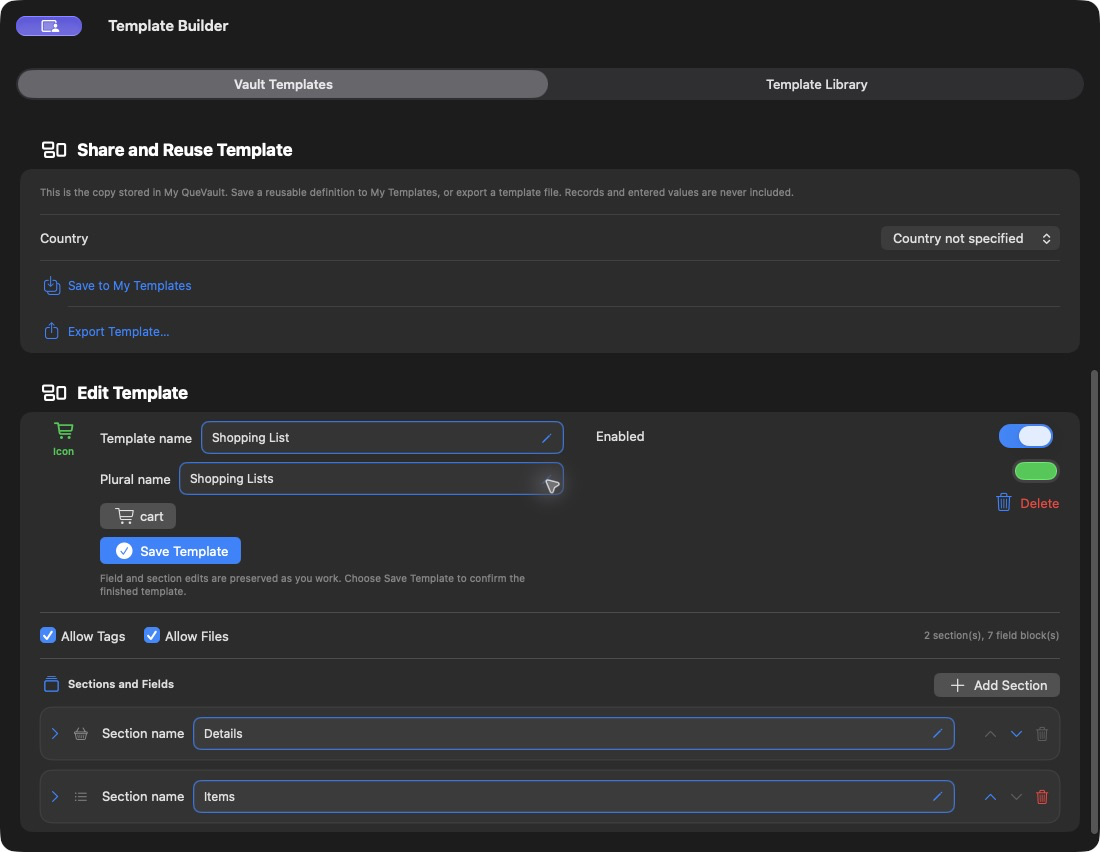
Shopping List template with separate Details and Items sections
The Shopping List template separates one set of trip details from its reusable Items section. View full size
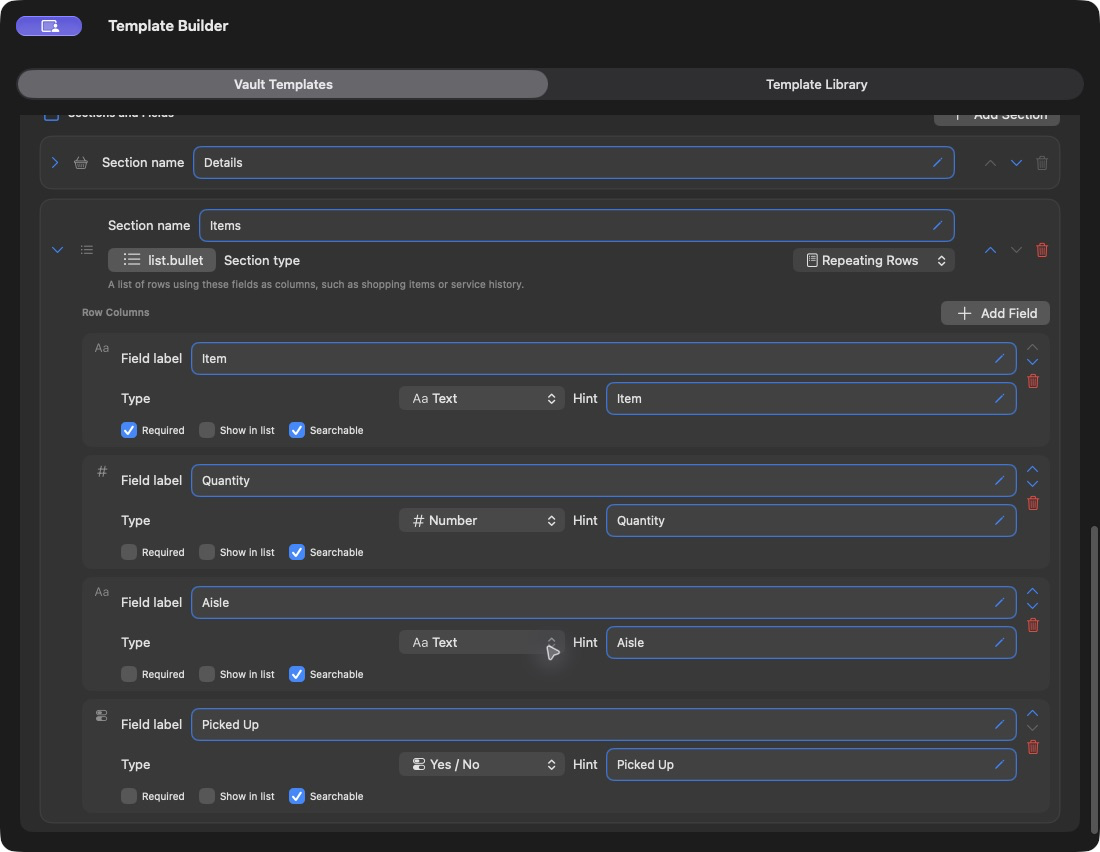
Items section set to Repeating Rows with Item, Quantity, Aisle and Picked Up fields
The real Items editor: Text, Number, Text and Yes / No columns repeat for every row. View full size
  1. Create the identityName it Shopping List, plural Shopping Lists, choose a cart icon and save the identity.
  2. Add a fixed Details sectionAdd Shop (Text), Shopping Date (Date), and Notes (Long Text). These apply to the whole trip.
  3. Add an Items sectionChange Section type to Repeating Rows. Its fields now become columns repeated for every item.
  4. Add the row columnsCreate Item (Text, Required), Quantity (Number), Aisle (Text or Picker), and Picked Up (Yes/No).
  5. Put the important column firstUse the arrows to keep Item first. Choose whether to show it in lists and include it in searches; secondary columns can remain record-only.
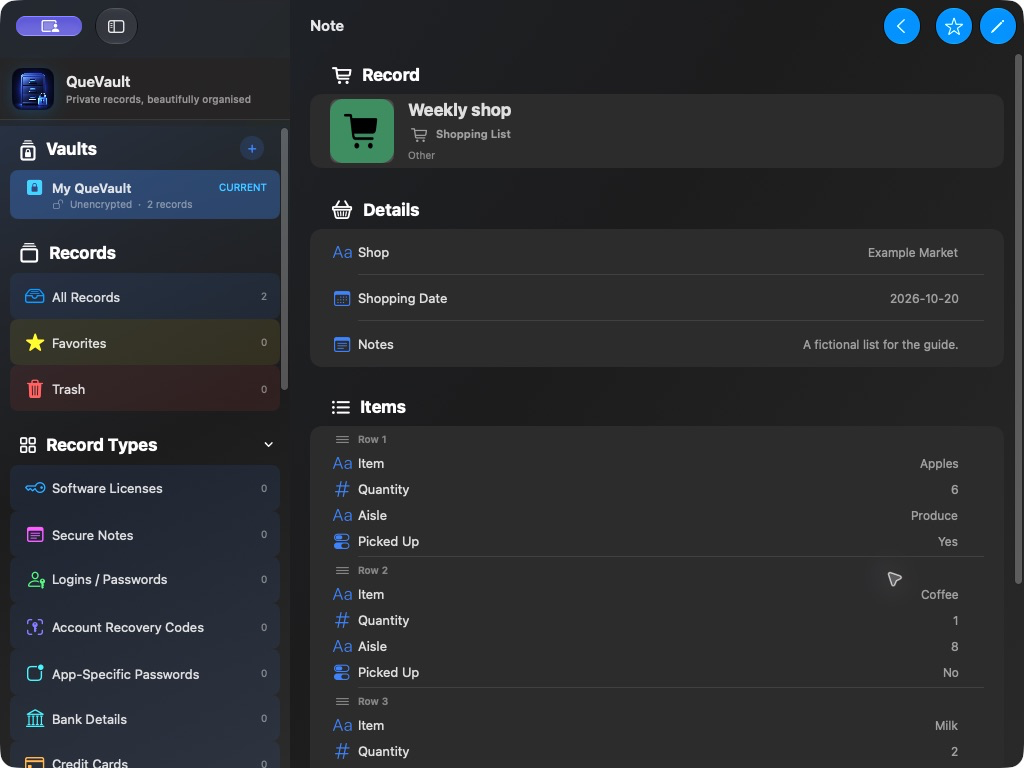
  6. Use the templateEnter the shop once, then add a row for every product. Add or remove rows without redesigning the template.
Section 1 Fixed FieldsSection 2 Repeating RowsRow name ItemColumns Four
Weekly shop record showing fictional shopping items in repeating rows
The actual record keeps trip details once, then displays each item using the same four fields. Scroll within QueVault to see further rows. View full size

What each control means

A field without the mystery

Real field editor showing the Password label, field type, hint and display options
Field labels, types, hints and options as they appear in QueVault. View full size

The label says what to enter

Field label is shown beside the value in every record. Type chooses the right editor and behaviour. Hint is a short example—not a saved value.

  • Required — marks a field as required in the template definition. Review that it is filled before saving a record.
  • Show in list — display this value while browsing records.
  • Searchable — include it in vault searches.

Choose the right structure

Fixed fields or repeating rows?

ONE

Fixed Fields

Use these for one set of values: an account number, provider, renewal date, username, private note or website.

Example: one insurer and one policy number.

MANY

Repeating Rows

Use these when the same columns need multiple entries: service history, medication doses, renewal events, devices or checklist items.

Example: many service dates, engineers and costs.

Application records

Do not enter the app name twice

When the application picker finds an installed app, QueVault uses that identity for the record’s main name and icon.

You normally do not need another field called Name, Title or Application. Add a second name only when it describes something genuinely different, such as an account nickname, licence holder or subscription plan.

Good fieldsUsernameAccount emailLicence keyRenewal date
Usually unnecessaryApplication nameRecord titleProduct name again

Good to know

Saving, editing and common surprises

Identity has an explicit save

After changing the template name, plural name or icon, use Save Template. Section and field changes are retained as you edit.

Select before editing

Reopening Template Builder does not silently choose a template. Use the selector at the top to open the one you want.

Templates belong to the vault

Custom templates are stored inside the current vault, so they travel with it when it is moved or opened on another device.

Old records stay safe

Editing a template changes its reusable design. Review existing records after major structural changes and keep a backup before reorganising important data.

Built-ins stay protected

Create an editable copy when you want to adapt a standard QueVault type. App updates remain free to improve the original.

Sensitive formats matter

Use Password or another protected field type for secrets so QueVault can mask and copy them appropriately.

A useful first project

Try a simple Warranty template

Create Purchase Details and Cover sections with Retailer, Purchase Date, Serial Number, Cover Ends and Notes. It is small enough to learn from and useful enough to keep.

Return to Support